
How can I translate a live meeting or livestream in real time in Chrome?
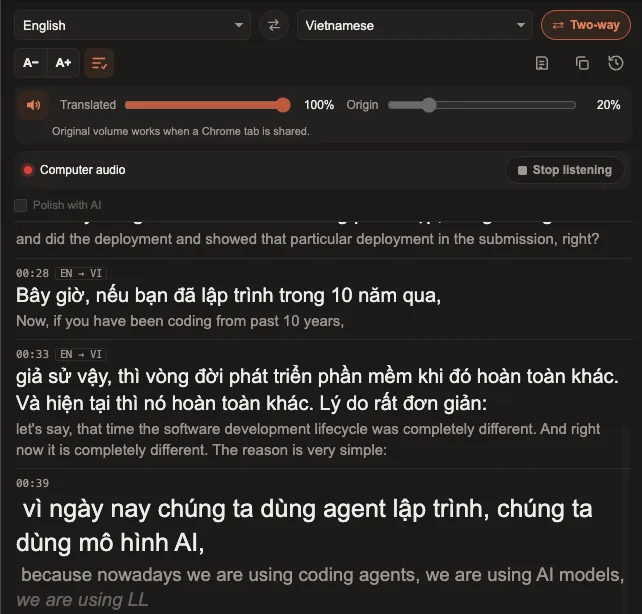
Open Oyelo's Translate Any Audio window and share the Chrome tab that is playing the meeting or stream. Oyelo turns the speech into live captions in your language and can read them aloud. For a conversation in person, use two-way mode with your microphone: each side speaks their own language and hears the other's.
How to do it
- Install Oyelo and open Translate Any Audio from its popup or from the page's right-click menu.
- Pick the language being spoken and the language you want, or turn on Two-way for a conversation.
- Choose what to listen to: a Chrome tab (Google Meet, Zoom in the browser, a livestream), a window, the whole screen, or your microphone.
- In Chrome's sharing dialog, switch the audio on. Captions appear within a few seconds and are read aloud if you want.
- Keep the window open while you listen; every session is saved on your device for later.
What Oyelo cannot do
- A Chrome tab's sound comes through on every system; a separate window or a desktop app may come back without sound on some systems, so share the tab or the whole screen instead.
- Captions run a few seconds behind the speaker.
- With speakers rather than headphones, the microphone can pick up the translated voice; use headphones or turn reading aloud off.
- It runs in Chrome on a computer, not on phones.
Questions and answers
Can I use it in Google Meet or Zoom?
Yes, when the meeting runs in a Chrome tab: share that tab and turn its audio on. For the Zoom desktop app, share the whole screen with its sound.
Does the other person need Oyelo?
No. Only you install it. In two-way mode on your microphone, both of you hear the translation from your computer.
Which languages?
Speech in many languages can be recognised, and the translation goes into more than 70 languages.
Is the audio recorded?
No recording is kept on any server. The audio goes only to the speech service while you listen, and the transcript stays in your browser.