
How can I watch Udemy or Coursera courses dubbed in my language?
Install the free Oyelo extension for Chrome, open a lecture on Udemy (including Udemy Business) or Coursera and press Dub. Oyelo reads the lecture's own subtitles, translates them and speaks them in sync with the video, so you can follow an English course by ear in your language.
How to do it
- Install Oyelo from the Chrome Web Store and pick your language in its popup.
- Open a lecture on Udemy, Udemy Business (your company's address works too) or Coursera.
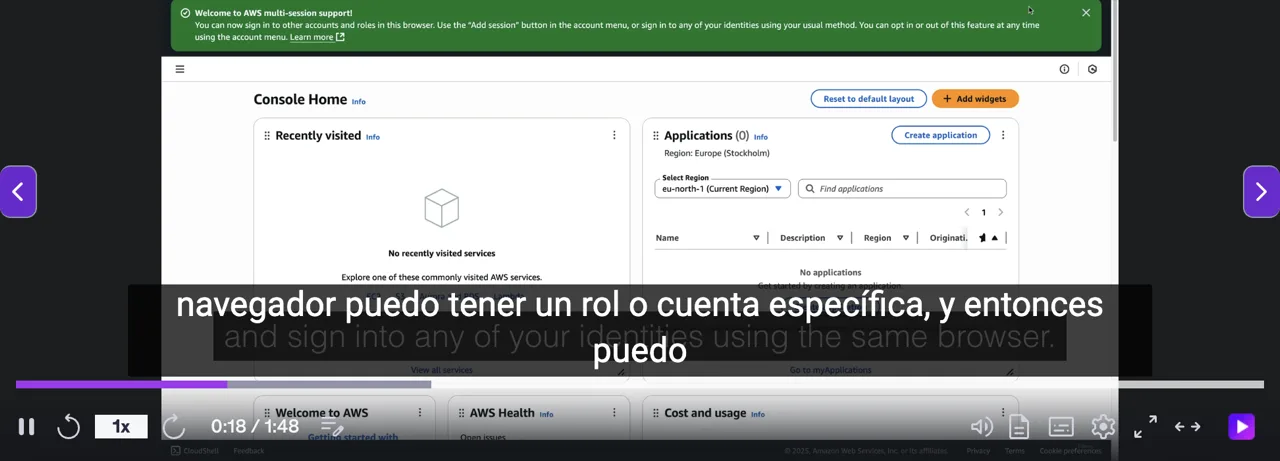
- Press Dub on the player. Oyelo uses the lecture's subtitles, so the timing follows the video.
- Keep the original voice low in the background, or turn it off, with the volume sliders in the popup.
- Open the transcript to review the lecture later, or download it as .srt.
What Oyelo cannot do
- Lectures without subtitles are dubbed from the speech, a few seconds behind the video.
- Code on screen and slide text are not translated, only what is said.
- It works in Chrome on a computer; the Udemy and Coursera mobile apps are not supported.
Questions and answers
Does it work with Udemy Business accounts?
Yes. Oyelo works on any udemy.com address, including company addresses such as yourcompany.udemy.com.
Does it change the course or my progress?
No. It only adds a voice and a subtitle line in your browser. Your progress and the course stay as they are.
Can I keep the English voice to learn?
Yes. Set the original volume in the popup to keep the English voice under the dub, and read both lines in the transcript.
Is it free?
Yes, with no account and no key. A key from OpenAI, Gemini, Google Cloud or Soniox is optional for more natural voices.